
Long exposure camera
Keep the night’s light
Watch short frames build a long exposure photo on your iPhone, with a checkpoint saved every minute.
- Free
- For iPhone
- Everything on device
Long exposure camera
Watch short frames build a long exposure photo on your iPhone, with a checkpoint saved every minute.
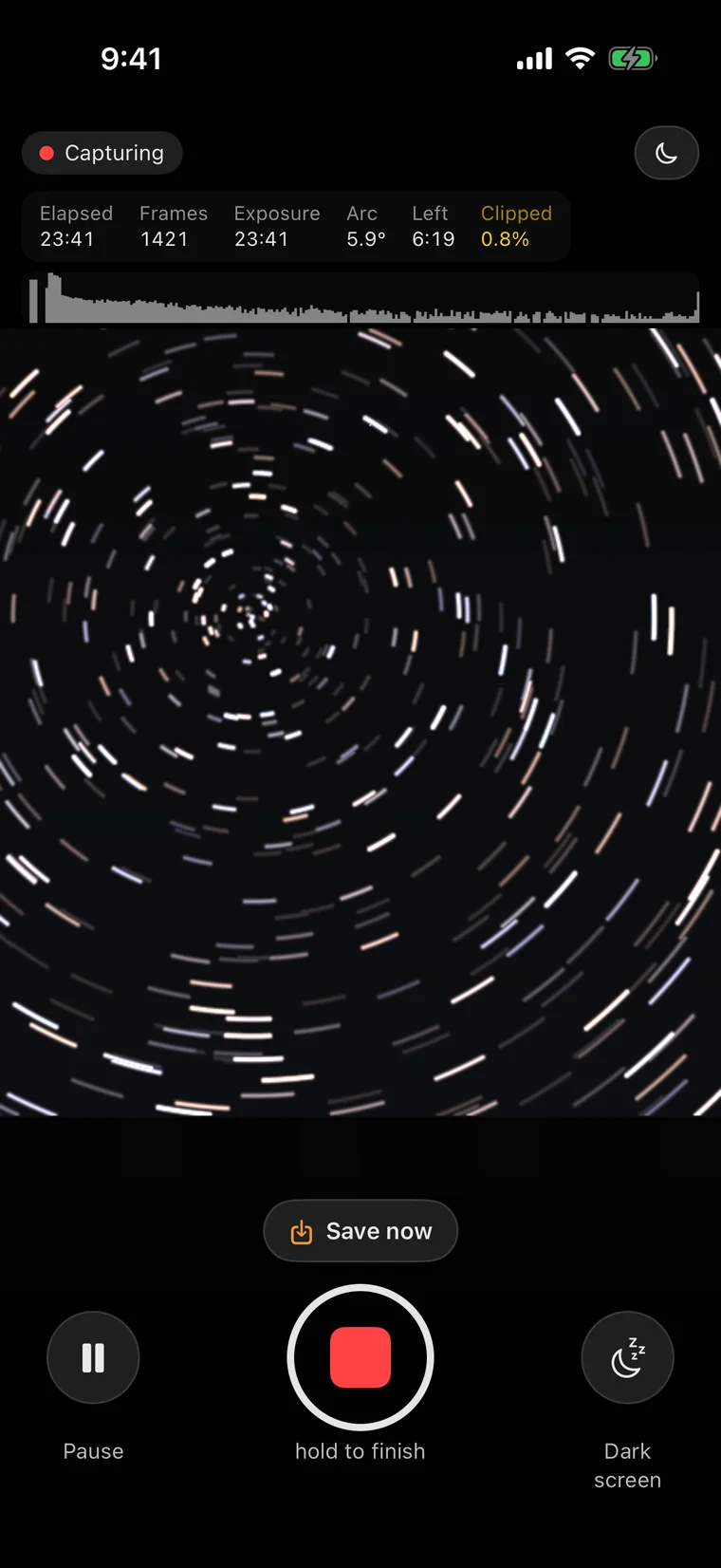
An iPhone’s single frame exposure tops out at about one second. By stacking short frames live, the app builds a longer exposure you can stop at any point for a complete photo.
This demo uses real captured frames and the same Lighten algorithm as the app.
Every preset configures the same engine, with all controls unlocked in Manual in the same interface.
Use Lighten blending to build star trails as the night passes. Watch their paths grow in the viewfinder.
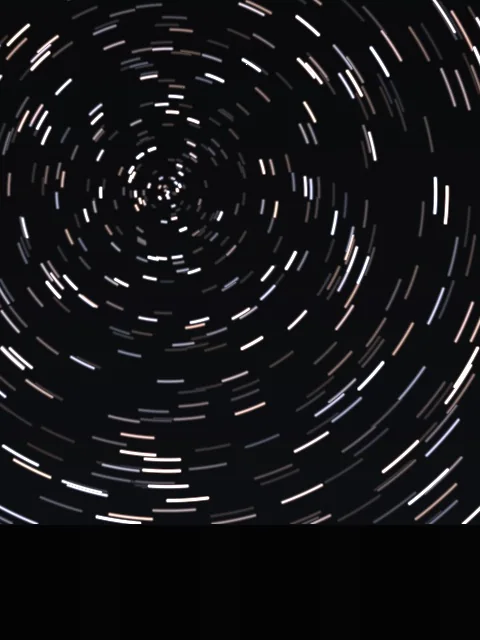
Trace lights from traffic, boats and aircraft with Lighten blending.
Use Average blending to smooth movement in water, clouds and crowds.
Start the capture, draw with light, then tap to stop.
If headlights cross the foreground in the latest minute, undo that minute and keep the other 59 minutes of an hour’s capture. With original frames retained, you can also remove selected minutes and restack after capture.
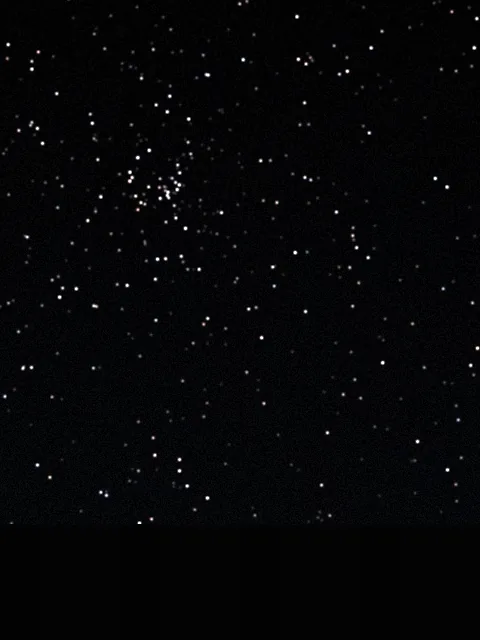
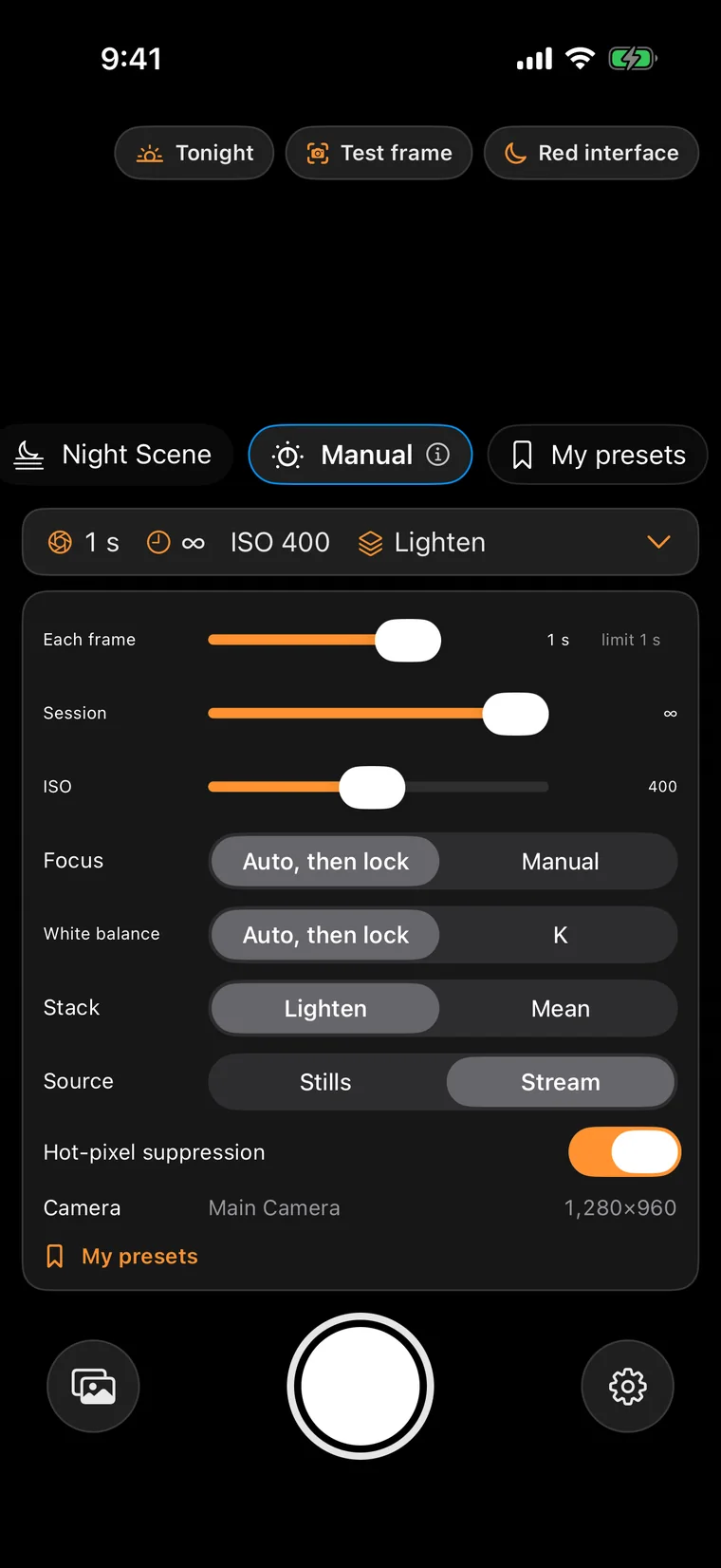
Single frame exposure and total duration have separate controls. Shutter and ISO limits come from your iPhone’s actual capabilities and are shown in the interface.
Set each frame’s exposure within the limits shown for your iPhone.
Control the capture’s total duration independently of each frame’s exposure.
Set ISO within your camera’s available range, with zebras, a histogram and an overexposure percentage to guide you.
Adjust lens position manually, magnify the view or use star autofocus assistance.
Lock white balance at a chosen Kelvin value.
Choose HEIF or Bayer RAW frames as DNG on supported models, then use Lighten or Average blending.
Ending a long capture takes a deliberate hold; light painting stops with a tap.
Plan offline with sunset, astronomical dusk and dawn, moon phase, moonrise and moonset.
Use a red interface for shooting in the dark.
A black screen shows elapsed time, frame count and battery in large type, with two taps to wake.
Use volume buttons, Camera Control or a Bluetooth remote, with a remote self-test in Settings.
Checkpoints saved every minute let you recover through the last checkpoint after calls, system interruptions or crashes, with gaps recorded and an option to undo the latest minute during capture.
Check battery, Low Power Mode, available storage and a call reminder before capture.
Temperature, battery and storage guards automatically finish and save the capture when limits become critical.
Take a test frame for a plain-language assessment of star count, sky brightness, focus and overexposure.
Keep your photo, original frames and capture report in a project package visible in Files.
All processing happens on your device, and saving to Photos requests add-only access. Privacy Policy
Keep your iPhone steady on a tripod and select Star Trails. Take a test frame to check the star count, sky brightness, focus, and overexposure. Use the magnified focus view or star focus assistance to refine focus, then start shooting. The viewfinder shows the photograph as it builds, and you can stop to save a complete image. If headlights sweep across the foreground, use Undo Last Minute during capture. If you keep the original frames, you can also remove selected minutes and rebuild the image after shooting.
The maximum exposure for a single iPhone frame is about one second. Longlight builds a longer exposure by combining many short frames. Single frame exposure and total duration have separate controls. The shutter speed and ISO limits shown in the interface come from your phone’s actual capabilities.
Longlight monitors temperature, battery level, and available storage. When one reaches a critical threshold, it automatically finishes the capture and saves the image. Before starting, review the checklist for battery level, Low Power Mode, available space, and call reminders.
Longlight saves a checkpoint every minute. After a call, system interruption, or crash, the image can be recovered from the latest checkpoint. Gaps are recorded in the shooting report. Frames captured after the latest checkpoint may not be included in recovery. You can also pause and resume a capture, save an image immediately without stopping, or continue stacking onto the same image after finishing.
Export the finished image as a 16-bit TIFF. To share the original frames, enable frame retention for the capture, then share the frames as a group. Original frames are HEIF, or DNG when shooting Bayer RAW on a supported iPhone. The capture package is visible in the Files app and includes a shooting report. Finished images can also be saved to Photos as HEIF or JPEG. A TIFF is a processed image; DNG files are the individual original frames.
Storage use depends on the frame format, the size of each frame, and the number of frames captured. Keeping every frame uses more space than keeping only the finished image, and longer captures accumulate more frames. Check available storage before starting. Retaining the originals lets you remove selected minutes and rebuild the image later.
You can trigger the shutter with the volume buttons, Camera Control on equipped iPhones, or a Bluetooth remote. Use the remote self-test page in Settings to check your remote before shooting. A delayed start is also available, giving you time to let the phone settle after triggering the shutter.
Use the red interface when working in the dark. The dark screen shows elapsed time, frame count, and battery level in large text. Tap twice to wake the shooting interface. Ending a long capture requires a press and hold to help prevent accidental stops. In Light Painting, a single tap stops the capture.
Writing location into photos is off by default. You can turn it on if you want location information included. Longlight processes images on your device and does not connect to the internet.

Free · iPhone · iOS 18 or later · English / Simplified Chinese
Download on the App Store